The FAST TRACK: The 10 minute promise
Hi!
Ready to get your hands dirty? 🛠️
If you are the kind of person who likes to skip the manual and just push buttons, this page is for you. Follow these 3 simple phases, and you'll be live-linked to our top traders in about 10 minutes.
Let's start the clock! ⏱️
Give me 10 minutes, and I'll give you a live copy-trading setup

The Quick, Simple, Linking Process
Below is an overview of Getting Started on the Copy Trading Service
1. Select which 3 link services you want to link to (Tip: Use Forex instruments to start with). Click here for more linked account selection guidance: LINK SELECTION
2. Make sure you have Demo accounts that match the size accounts and leverage of the accounts you want to copy. Click here for more guidance: Trading Accounts
3. Join the Forum
4. Download the Receiver Robot from EAFactory
5. Install the Robot onto your MetaTrader Platforms
6. Load the Receiver Robot onto the charts
7. Use the appropriate settings to link to your selected Trading account
8. Check that the link is working
9. Repeat steps 5 to 8 if you want to link to 3 services on separate demo accounts
Use this link for more detailed information about the service LINK SERVICE
Step 1
Select 3 accounts you want to Copy Trade
If you are new to linking services this can be a confusing process as often many factors need to be considered from the mass of information supplied. Every week we list accounts for that can be copied on the Link-2-Success Main Page: LINK-2-SUCCESS MAIN PAGE.
Link selection is also covered in another section. Please use this link for more information: LINK SELECTION
To get yourself going very quickly, you can simply link to the accounts on the Risk Analysis Schedule on the LINK-2-SUCCESS MAIN PAGE with the fewest 0 or low negative weeks.
The only filter you need to apply is that the account you intend to link to does not have a large open negative trade balance relative to the required account size.
So if you have a list of 3 accounts with their Signal Provider codes, leverage required, and minimum account balance, we are ready to move on.
It is important to demo test the service on a demo account before using a live account. Experiencing slippage, broker processing differences, lot size rounding are only some of the reasons.
Ideally, you should use a demo account of the broker you intend to use for live accounts. It will also train you how to use the Linking service and the information supplied. Some traders may want to go straight into using live cent accounts.
Try to open a demo account with the same broker as the signal provider uses. Always be aware of the minimum account size and the minimum leverage requirements. Try to open accounts that will reflect the account balances you will use in live trading.
Cent account broker links are on this page CENT ACCOUNTS
Click here for more guidance on trading accounts: TRADING ACCOUNTS
Step 2
Creating demo accounts to use to test the service
Step 3
Join the Expert4x Premium Forum
The Link-2-Success service is free to members of the Expert4x premium Trading Forum and is the only way to get access to the Receiver Robot. So the next step is to simply join the Premium Forum by activating a monthly subscription.
Use this link to join the Premium Forum: Premium Forum
Once you have joined the premium Forum and logged in navigate to the Link-2-Success section of the Forum and download the Robot installation program from there.
Otherwise, you can use this link to go to the download page. Please read this page carefully, as there are a few ways to download the files link: ROBOT DOWNLOAD
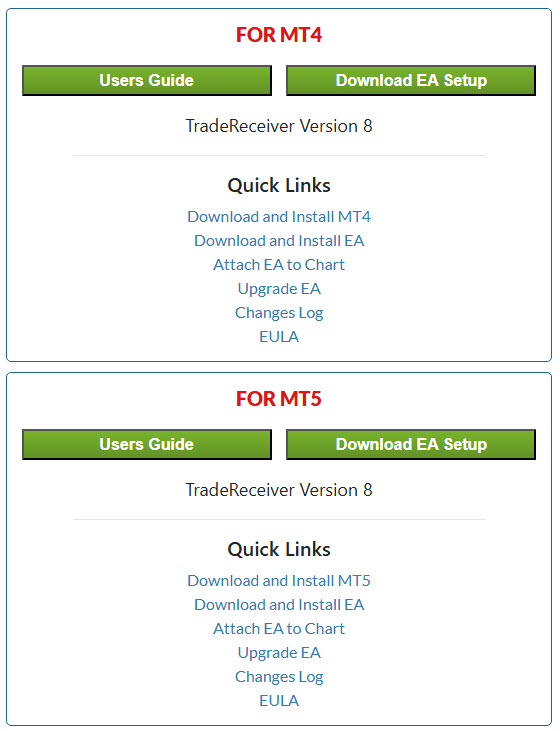
Simply follow the instructions to open a EAFactory Account and access the download page. The program will be downloaded into your Download folder
Step 4
Download the Installation program for the Reveiver Robpt from the EAFactory website
Step 5
Installing the robot into your MetaTrader platforms
After downloading the installation file from EAFactory in the previous step, go to the download folder and open it by clicking it. Follow the process and install the EA on all your platforms at once.
The EA will be added to the "Navigator" under the "Expert Advisor section". If you do not see it, simply right-click on the "Expert Advisor" heading and select "Refresh"
-
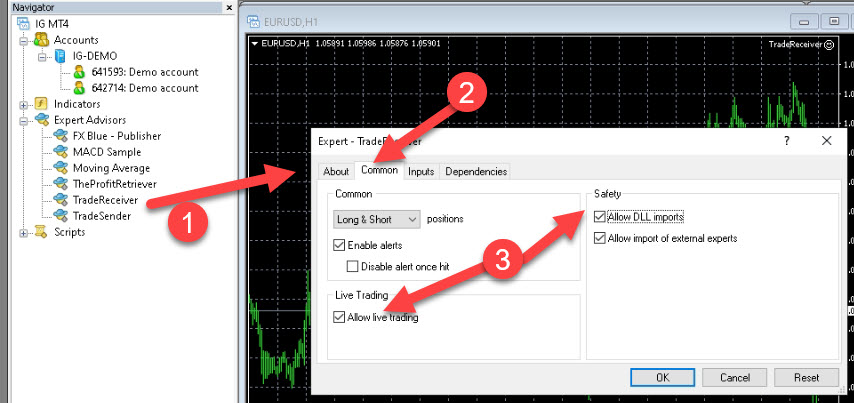
Drag the Trade Receiver Robot from the Expert Advisors section of the MetaTrader onto a chart (It can be a chart of any currency or timeframe)
-
Open the Common Tab
-
and make sure "Allow DLL Imports" and "Allow Live Trading" is TICKED
Step 6
Add the Trade Receiver to a Chart
Step 7
Complete the Receiver Settings
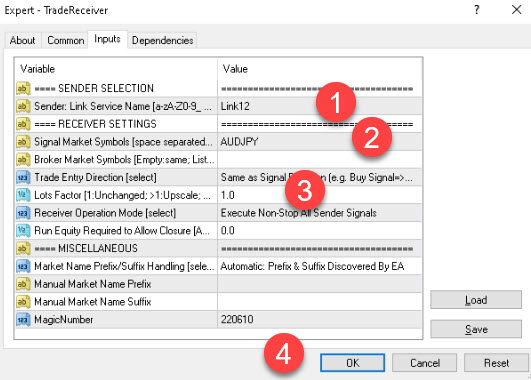
- Go to the Inputs tab and Enter the signal provider symbol exactly as show in the linkable list as show in this link: 14 Day Trial
- Enter the Symbol traded by the signal provider. This is also provided in the linkable list in the above link.
- If you are using a $10 000 account then use a Lots Factor of 1.
- and click on OK

Make sure:
- There is a smiley face in the top right hand part of the screen
- The link has an active status
- You are linked to the intended service
- The symbol is correct
- That there are no error messages - if there are errors read them carefully and make the corrections. If that does not work go to the "Inputs" Tab on the Robot and click on OK.
Step 8
Check if everything is OK